
Run payroll by credit card. Keep your cash.
Your payroll provider or payroll team prepares the payroll. In ZIL MONEY you find the payroll run in your list, click Confirm Payment, and pay the payroll amount with your credit card. A 2.9% credit card fee applies.
- Pay a payroll run with a business credit card
- Set the bank account, card, and method
- Review, sign, and see Transaction Initiated
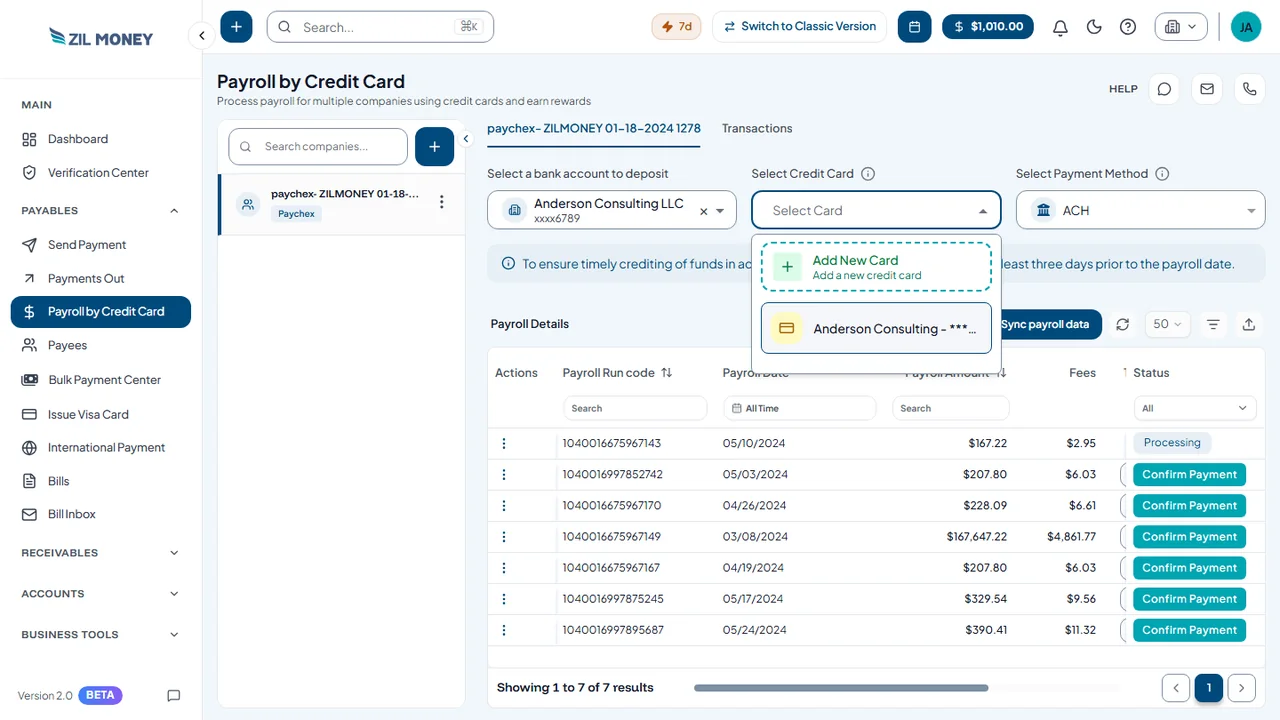 Choose the account, card, and method
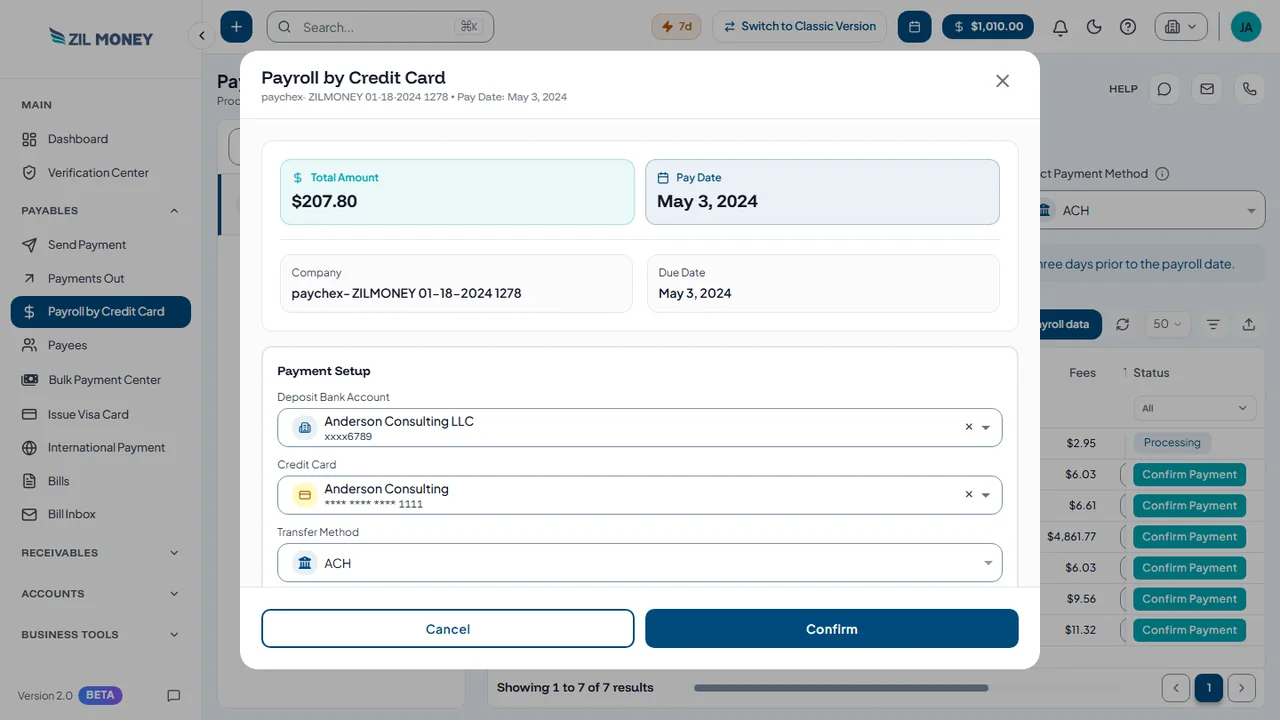 Confirm the payroll run
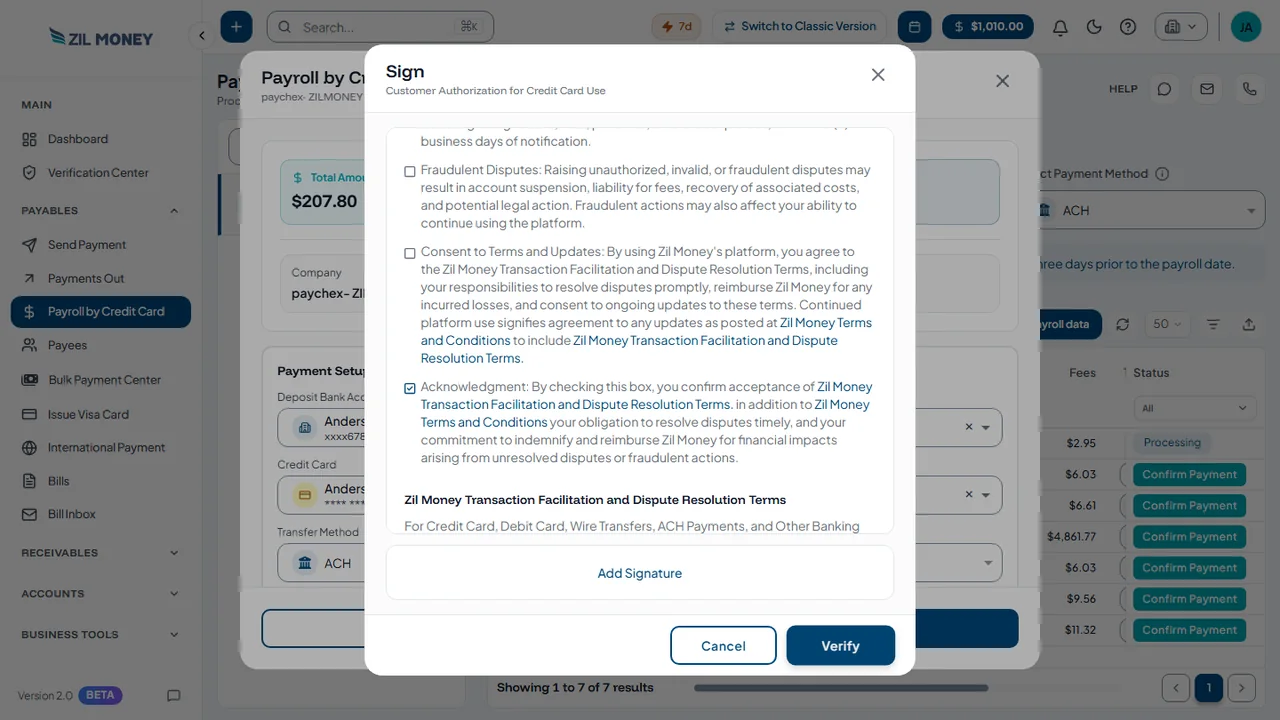 Review and sign
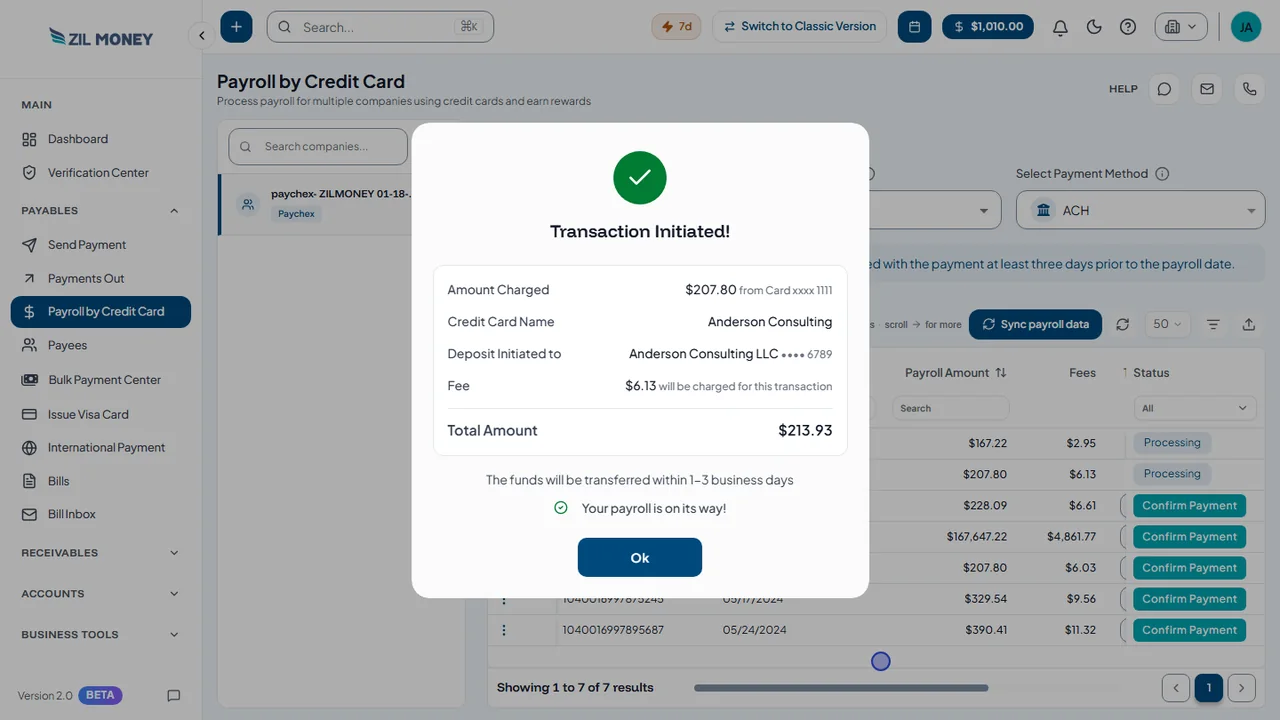 Transaction initiated








Payment Setup is where you choose.
The confirm window shows the transfer method next to these two.
Pay a payroll run from one list.
Find the run. Confirm it. Review, sign, and you are done.
Confirm the payroll run
The window shows the total amount, pay date, company, and due date. Under Payment Setup you see the deposit bank account, credit card, and transfer method.
See Transaction Initiated
This window shows the amount charged to your card, the card name, the bank account the deposit goes to, and the fee. The confirmation screen says funds are transferred within 1 to 3 business days.
Pick the transfer method
ACH is shown on the screen.
Keep your books in sync
Works with QuickBooks, Xero, Zoho, and other accounting tools.
Works with the tools you already use.
Connect your accounting tools and more. See all integrations















Payroll should not strain your cash.
Here is what slows most small businesses down, and how ZIL MONEY fixes it.
Payroll is due and cash is tight.
Pay with a credit card. Click Confirm Payment on the payroll run and pick your card.
I manage payroll for more than one company.
Keep them in one list. Companies sit on the left. Each one shows its own payroll runs.
I cannot get my payroll runs into the list.
Use Sync payroll data. The button above the table brings the payroll runs in.
I do not know what the payment will cost.
Read the Fees column. The fee for each run is shown before you confirm.
I do not know which runs are handled.
Look at the status. A run shows Processing, or a Confirm Payment button if it is waiting.
My books are always behind.
Sync your accounting. Works with QuickBooks, Xero, Zoho, and other accounting tools.
I am not always at my desk.
Use your phone or tablet. Confirm payroll payments from anywhere.
From payroll run to Transaction Initiated.
Your provider prepares the run. You pay it.
Choose the account, card, and method
Pick the bank account to deposit to, the credit card, and the payment method. Pay at least three days before the payroll date.
Find the run and confirm
Use Sync payroll data if needed. Then click Confirm Payment on the run.
Review and sign
Read the Transaction Authorization Form, tick that you agree, press Confirm & Proceed, then add your signature.
See Transaction Initiated
The final window shows what was charged and where the deposit goes.
Easy to learn. Quick to help.
In their own words, from businesses that use ZIL MONEY.

“Working with ZIL MONEY has been such a great experience.”
We use their platform to create and send eChecks to multiple parties, and it’s been incredibly smooth and efficient. Anytime we have a question or run into an issue, their team is quick to respond and always helpful.

“ZIL MONEY has been a game-changer for our business!”
Their payment support is top-notch, quick, reliable, and always ready to assist with any questions we have.

“The most helpful part is that ZIL MONEY can be used by everyone.”
It’s very easy to navigate. The user interface is very easy to learn. It solves the problem of having various accounting software separately and unable to integrate.
Common questions
Can I pay payroll with a credit card?
What is the credit card fee?
Do I type in the payroll amount?
Does ZIL MONEY prepare my payroll?
How do payroll runs get into the list?
When should I pay?
Does it work with QuickBooks?
Can I send payroll payments from my phone?
Run your first payroll by credit card.
Open an account, or book a short demo and we will show you around. A 2.9% credit card fee applies to credit card payments.
Have a question? Talk to our team
Recent Comments