
Manage BambooHR payroll by credit card.
Keep your people data where it is. When a BambooHR payroll run is ready, ZIL MONEY pays it with a credit card and tracks it in a list. A 2.9% credit card fee applies.
- Pay a BambooHR payroll run
- Use the Sync payroll data button
- Track each run in Payroll Details
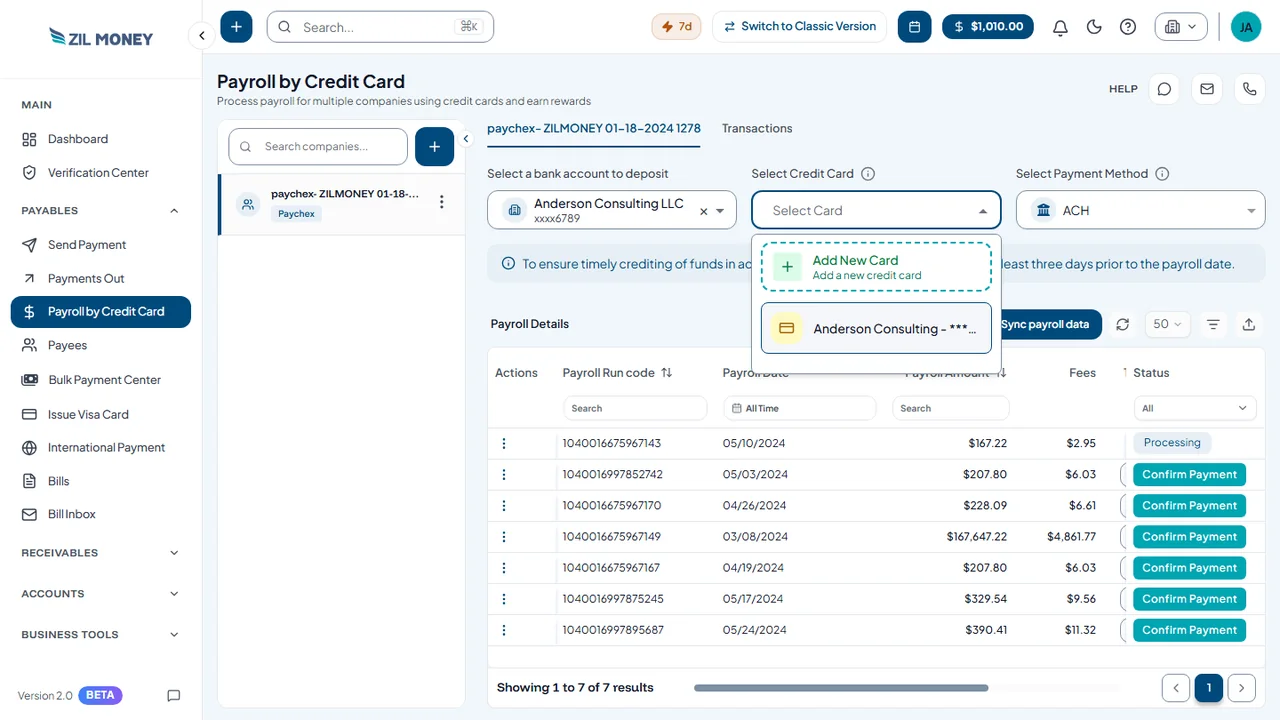 Choose the account, card, and method
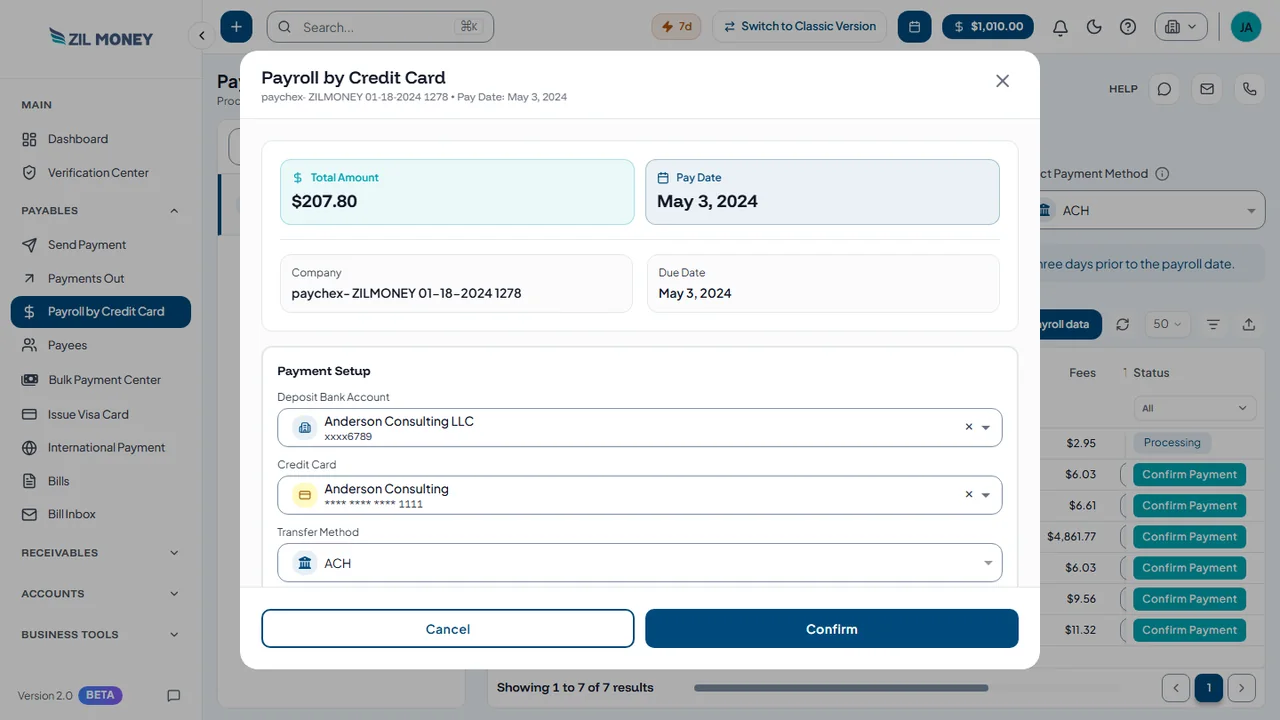 Confirm the payroll run
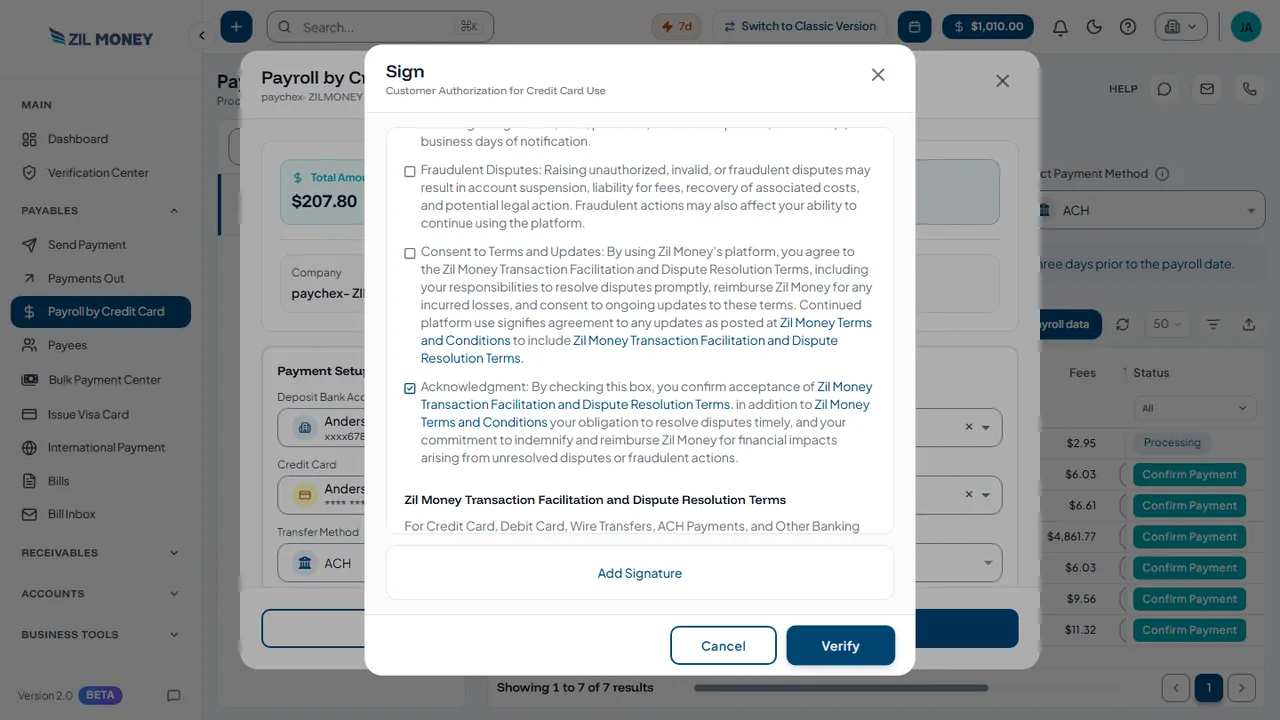 Review and sign
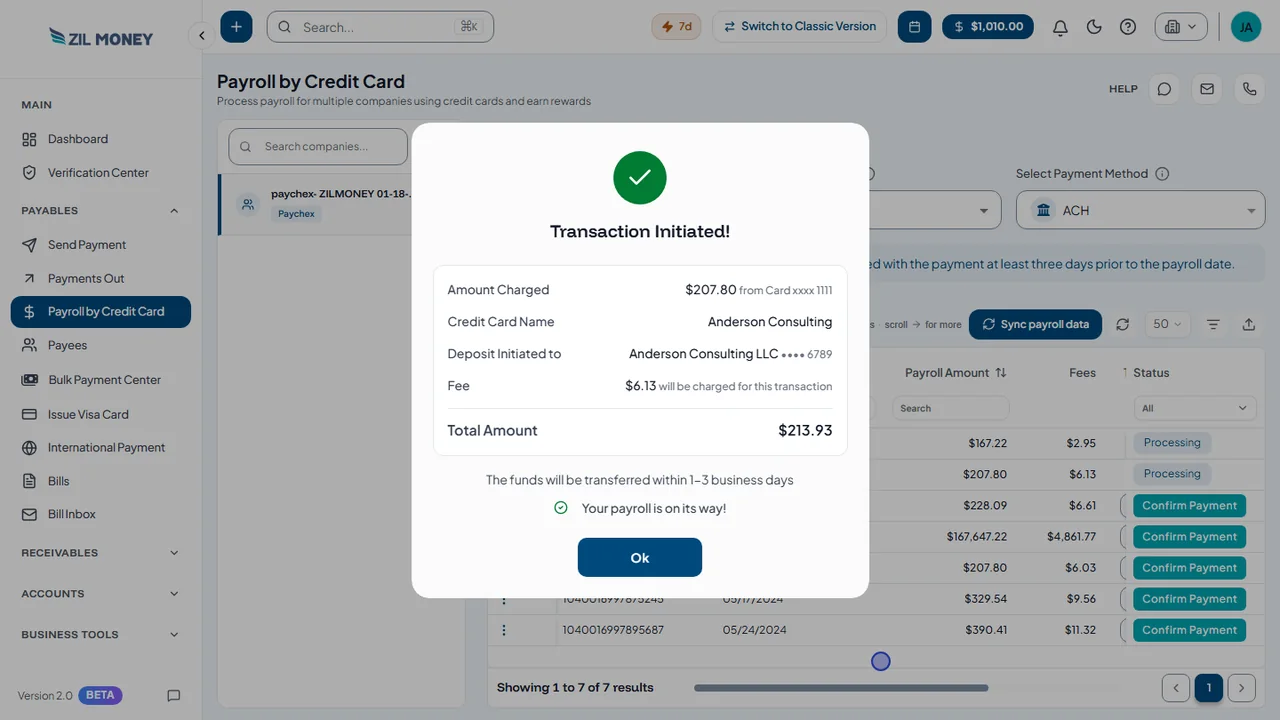 Transaction initiated










Two things to know about BambooHR payroll.
You prepare it. ZIL MONEY pays it.
How much can paying by card earn you?
From a BambooHR payroll to a paid run.
Sync, confirm, sign, and follow the status.
Confirm the payroll run
See the Total Amount, Pay Date, Company, and Due Date, plus the account, card, and transfer method.
Transaction Initiated
The last window shows the charge to your card, the deposit, the fee, and the total.
Follow each run
Payroll Details lists the run code, date, amount, fee, and status.
Choose the setup
Select the bank account, the card, and the payment method.
Keep your books in sync
Works with QuickBooks, Xero, Zoho, and other accounting tools.
Works with the tools you already use.
Connect your accounting tools and more. See all integrations












HR data in one place, payments in another.
Here is what slows most small businesses down, and how ZIL MONEY fixes it.
Payroll data lives somewhere else.
Use Sync payroll data. The button above the table brings payroll runs into the list.
I am afraid of picking the wrong run.
Read the confirm window. It shows Total Amount, Pay Date, Company, and Due Date before you press Confirm.
I lose track of earlier runs.
Open the list. Runs stay in Payroll Details with their code, date, and status.
I want my books to match.
Sync your accounting. ZIL MONEY works with QuickBooks, Xero, and Zoho.
I want to see the fee first.
Read the Fees column. The fee for each run is shown before you confirm.
I am not always at my desk.
Use your phone or tablet. Do it from anywhere.
Pay a BambooHR payroll run in four steps.
One page, from list to signature.
Sync the runs
Press Sync payroll data and look for the run you want.
Set up payment
Choose the deposit bank account, the credit card, and the payment method.
Confirm Payment
Click Confirm Payment, read the details, and press Confirm.
Sign and finish
Review the form, add your signature, and see Transaction Initiated.
Easy to learn. Quick to help.
In their own words, from businesses that use ZIL MONEY.

“Working with ZIL MONEY has been such a great experience.”
We use their platform to create and send eChecks to multiple parties, and it’s been incredibly smooth and efficient. Anytime we have a question or run into an issue, their team is quick to respond and always helpful.

“ZIL MONEY has been a game-changer for our business!”
Their payment support is top-notch, quick, reliable, and always ready to assist with any questions we have.

“The most helpful part is that ZIL MONEY can be used by everyone.”
It’s very easy to navigate. The user interface is very easy to learn. It solves the problem of having various accounting software separately and unable to integrate.
Common questions
Can I pay BambooHR payroll by credit card?
What is the credit card fee?
Can I sync BambooHR with ZIL MONEY?
Does ZIL MONEY replace BambooHR?
Does ZIL MONEY run payroll for BambooHR?
How do I know a BambooHR run is being handled?
Where do I see the fee for a run?
Does it work with QuickBooks?
Pay your next BambooHR payroll run.
Open an account, or book a short demo and we will show you around. A 2.9% credit card fee applies to credit card payments.
Have a question? Talk to our team
Recent Comments