
Manage payroll payments. Run after run.
Every payroll run for a company appears in one table with its code, date, amount, fee, and status. Open it to see what is being handled and what is still waiting. A 2.9% credit card fee applies.
- One table of payroll runs
- A status on each run
- The same steps for each new run
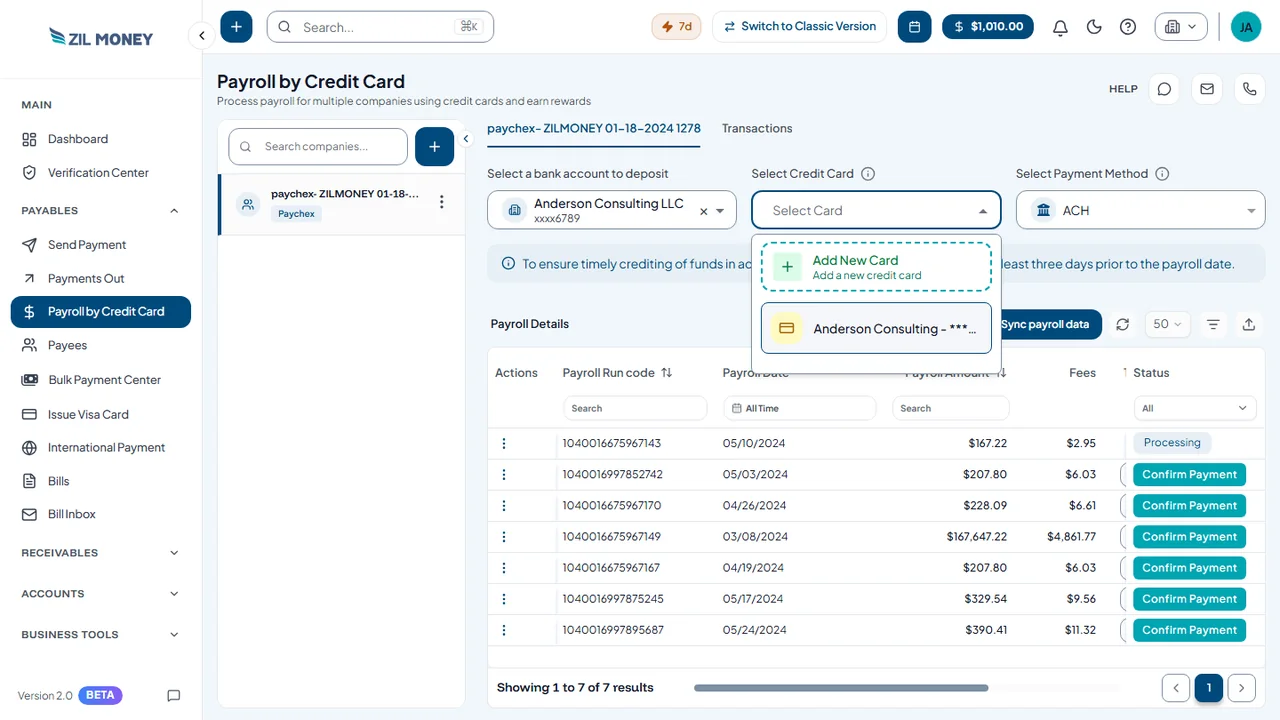 Choose the account, card, and method
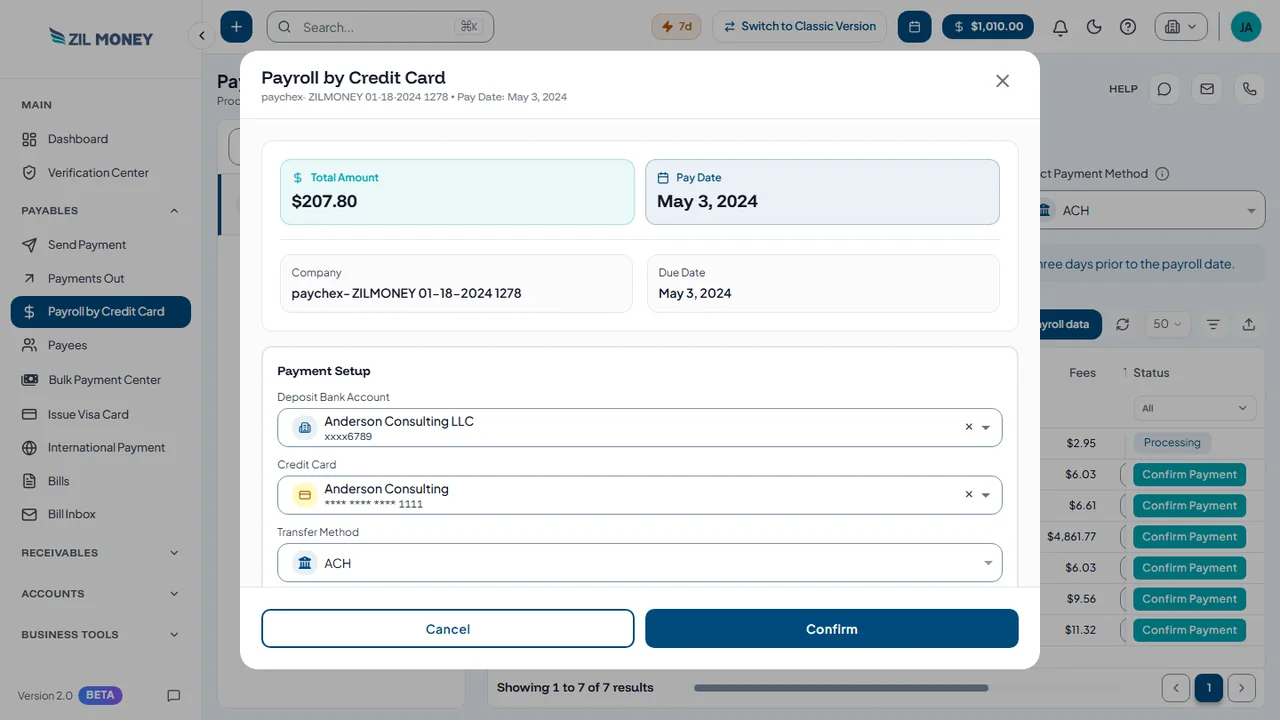 Confirm the payroll run
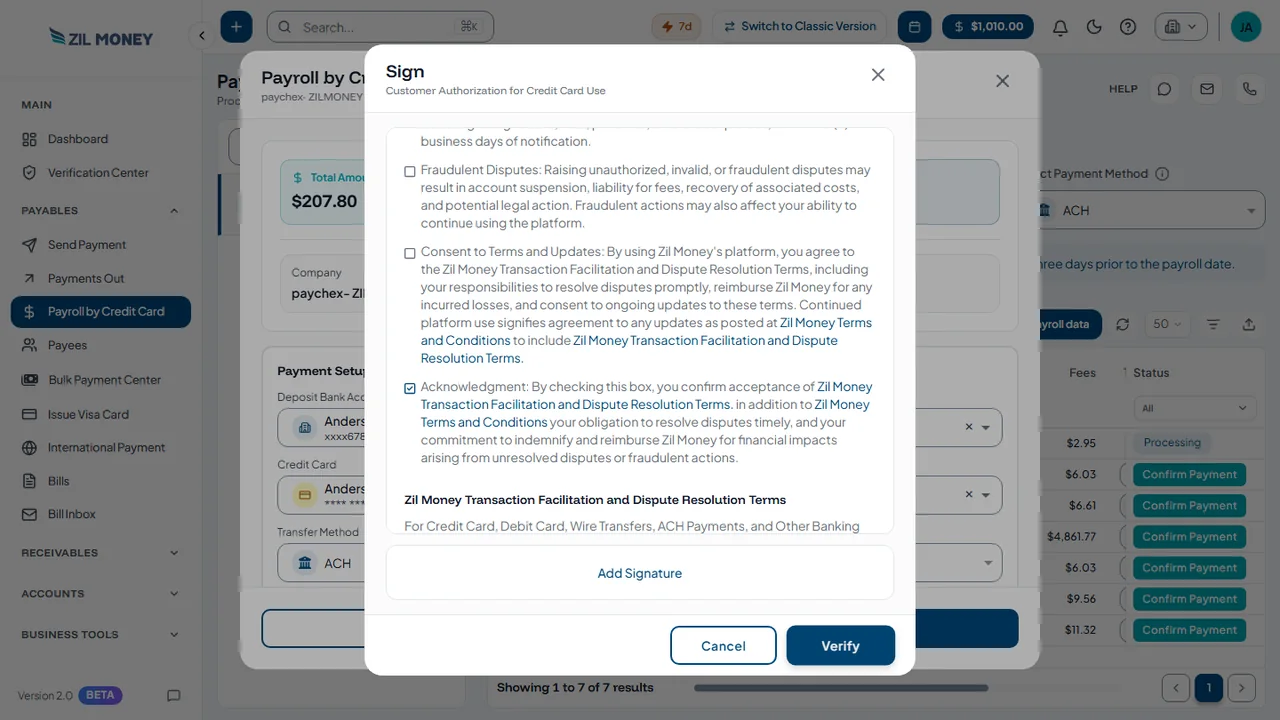 Review and sign
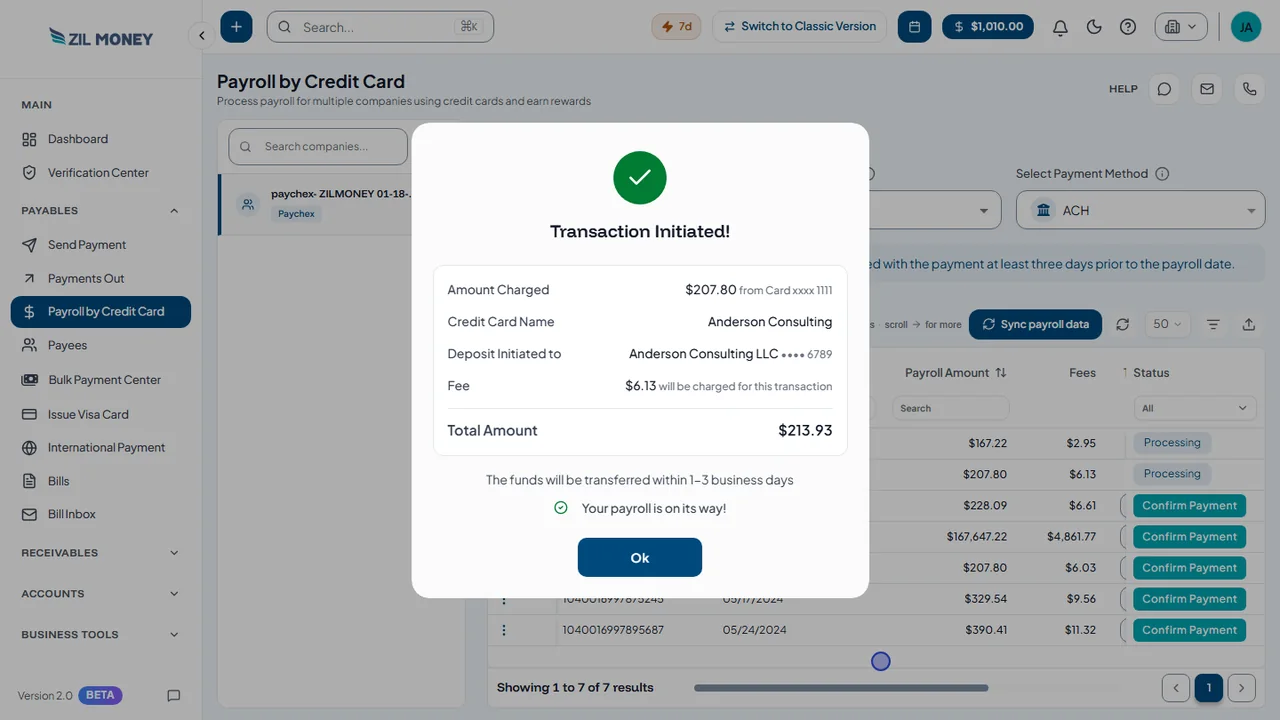 Transaction initiated









What the payroll table shows.
Each row carries what you need at a glance.
Keep every payroll run in one table.
Confirm the new run. Follow the rest.
Confirm the new run
The window shows the total amount, pay date, company, and due date. Payment Setup shows your bank account, card, and method.
Know it started
Transaction Initiated shows the amount charged, the card used, the deposit bank account, and the fee.
A tab for each company
Pick a company on the left. Switch between its payroll and its Transactions.
Same setup each run
Choose the bank account, card, and method again.
Keep your books in sync
Works with QuickBooks, Xero, Zoho, and other accounting tools.
Works with the tools you already use.
Connect your accounting tools and more. See all integrations















Payroll payments pile up. The table keeps them straight.
Here is what slows most small businesses down, and how ZIL MONEY fixes it.
I lose track of past payroll runs.
Open the Transactions tab. Each company keeps its payroll history in one place.
I do not know what is still waiting.
Read the Actions column. A waiting run has a Confirm Payment button.
Each pay period feels like starting over.
Repeat the same steps. Set the account, card, and method, then confirm the run.
New runs are missing from the table.
Use the sync button. Sync payroll data brings the payroll runs in.
I handle payroll for several companies.
Keep them together. Companies sit in a list on the left.
I am not always at my desk.
Use your phone or tablet. Do it from anywhere.
The same steps every pay period.
Learn it once. Repeat it every run.
Sync the runs
Click Sync payroll data to bring in the latest payroll runs.
Set up the payment
Select the bank account, the credit card, and the method.
Confirm and sign
Click Confirm Payment on the run, then review and sign.
Follow the run
Watch for Processing in the status column.
Easy to learn. Quick to help.
In their own words, from businesses that use ZIL MONEY.

“Working with ZIL MONEY has been such a great experience.”
We use their platform to create and send eChecks to multiple parties, and it’s been incredibly smooth and efficient. Anytime we have a question or run into an issue, their team is quick to respond and always helpful.

“ZIL MONEY has been a game-changer for our business!”
Their payment support is top-notch, quick, reliable, and always ready to assist with any questions we have.

“The most helpful part is that ZIL MONEY can be used by everyone.”
It’s very easy to navigate. The user interface is very easy to learn. It solves the problem of having various accounting software separately and unable to integrate.
Common questions
Where do I see all my payroll runs?
What is the credit card fee?
What do the statuses mean?
Can I see the fee before I confirm?
What is the Sync payroll data button?
Do I type in the payroll amount?
Does it work with QuickBooks?
Can I send payroll payments from my phone?
Put every payroll run in one table.
Open an account, or book a short demo and we will show you around. A 2.9% credit card fee applies to credit card payments.
Have a question? Talk to our team
Recent Comments